
Adding Parts to Stock by Amending a Group Order
-
Navigate to Product Support > Parts > Parts Invoicing.
The Parts Invoicing screen will appear.
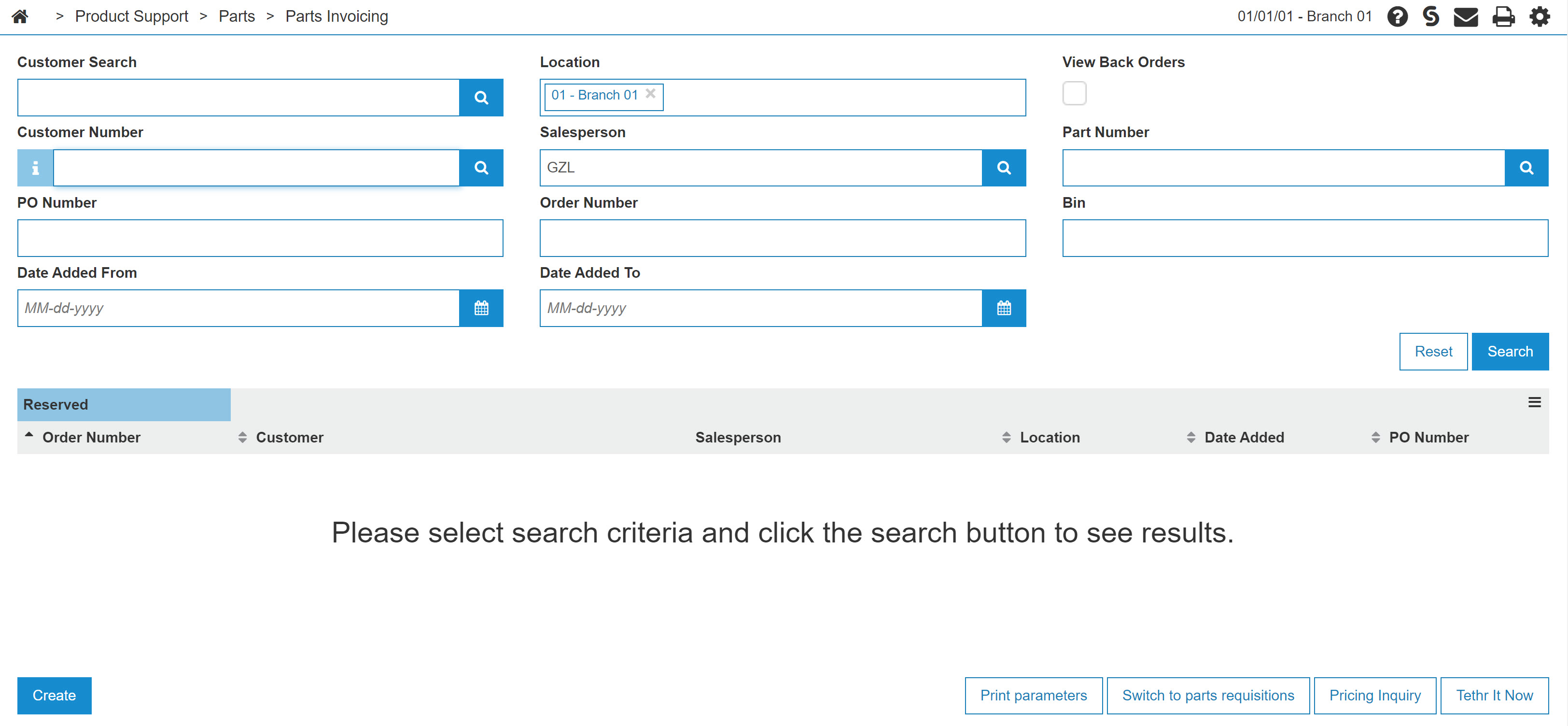
Parts Invoicing screen
-
On the Parts Invoicing screen, click on the Need to create an invoice? Click here to add link.
The Customer - Parts Invoicing Header tab will appear.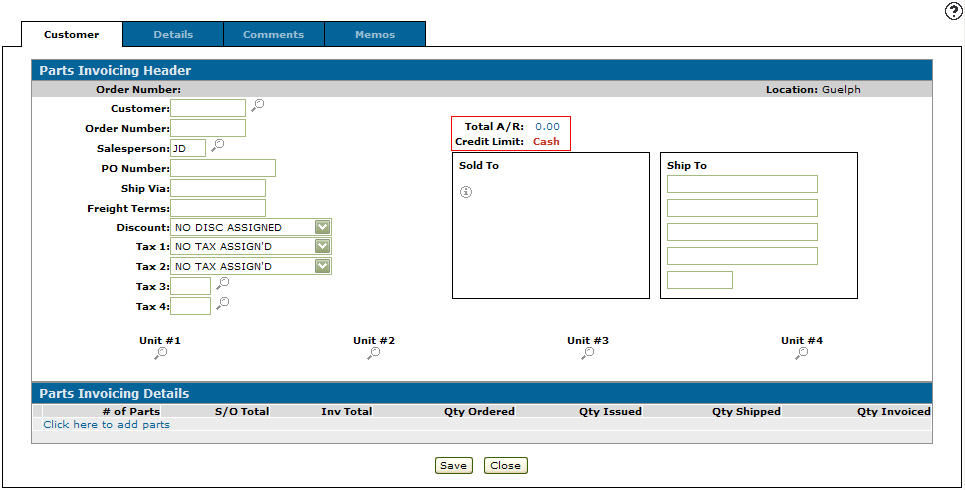
Customer - Parts Invoicing Header tab
-
On the Customer - Parts Invoicing Header tab, type STOCK in the Customer field.
-
Select the Click here to add parts link.
- or -
Click the Details tab.
The Parts Invoicing Details screen will appear.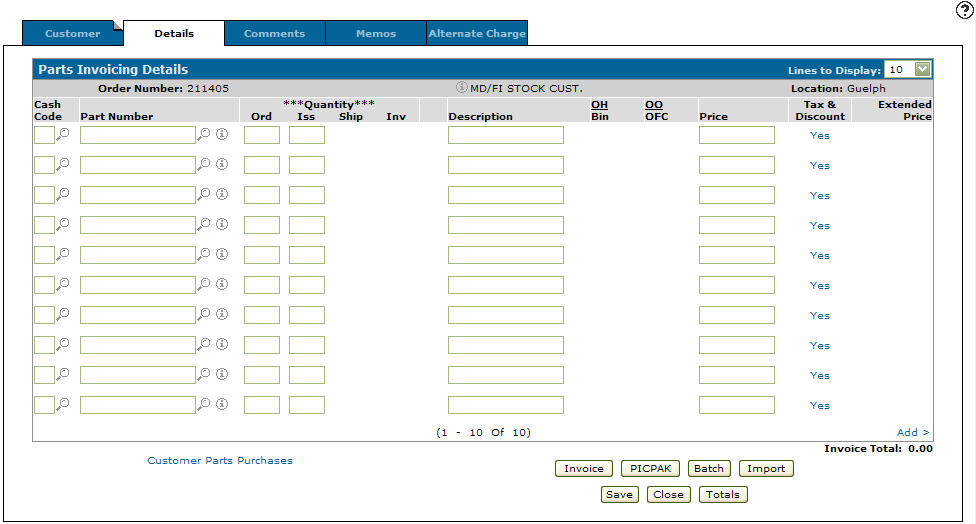
Parts Invoicing Details tab
-
On the Parts Invoicing Details tab, enter cash code 2 in the Cash Code field.
-
Enter a Part Number.
- or -
Click on the Search icon.
icon.
The Parts Search screen will appear.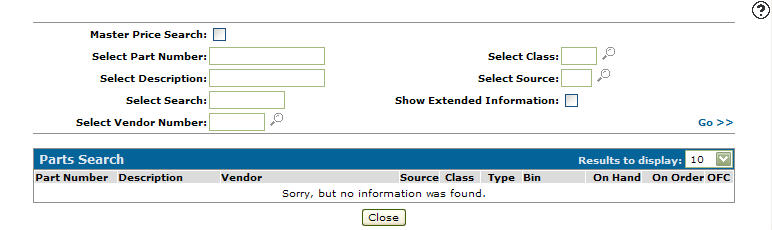
Parts Search screen
-
Enter the search criteria and click the Go>> link to locate the desired part.
-
Click on the part number, the Parts Invoicing Details tab will appear with the selected part in the Part Number field.
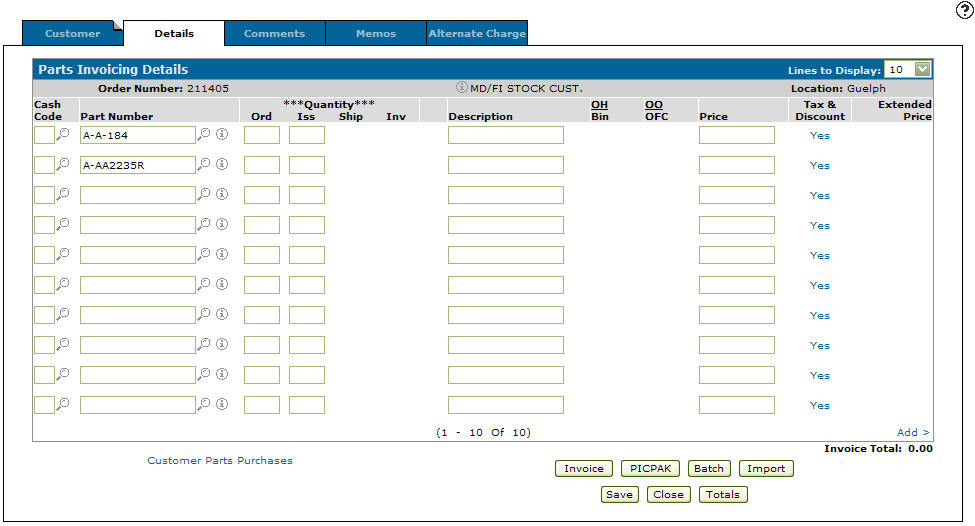
Parts Invoicing Details tab
-
On the Parts Invoicing Details tab, enter an Order number.
-
Click on the Save button.
The system will automatically generate the remaining fields.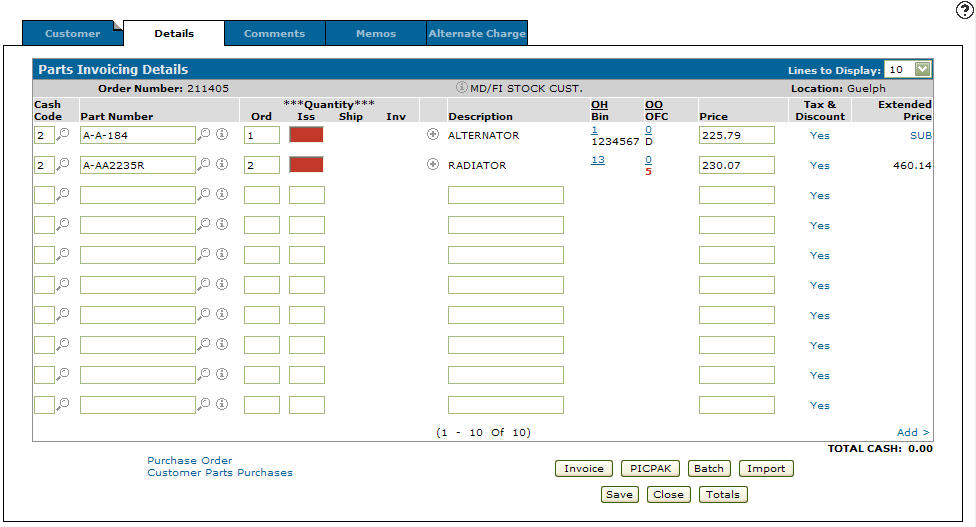
Updated Parts Invoicing Details tab
-
Click on the Purchase Order link, and select Create from the pop-up list.
The Create Purchase Order screen will appear.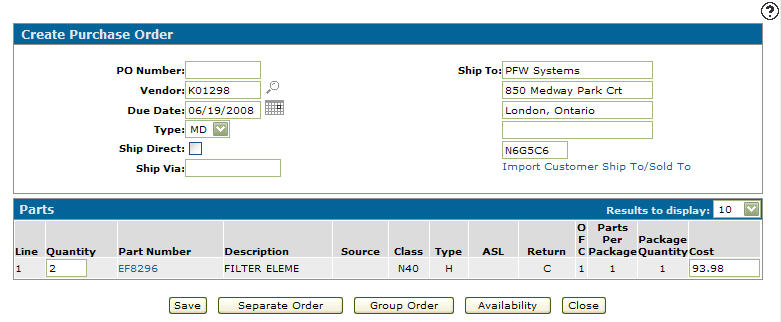
Create Purchase Order screen
-
(OPTIONAL) enter the Ship Via code.
-
Click on the Group Order button.
The Parts Invoicing Details tab will appear, with the group order date under the Extended Price field.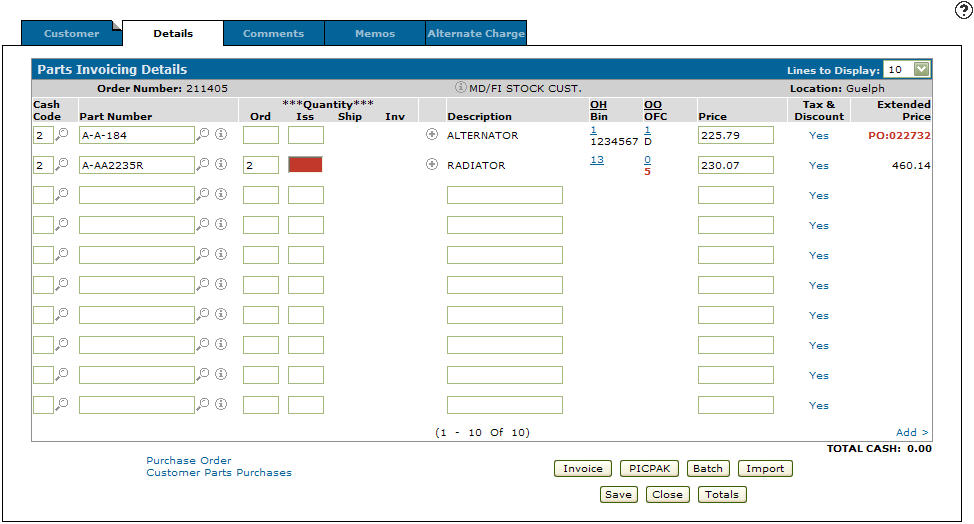
Updated Parts Invoicing Details tab
-
Click on the Save button.